Canva’s AI: The Tools Every Creator and Designers Should Know before 2026

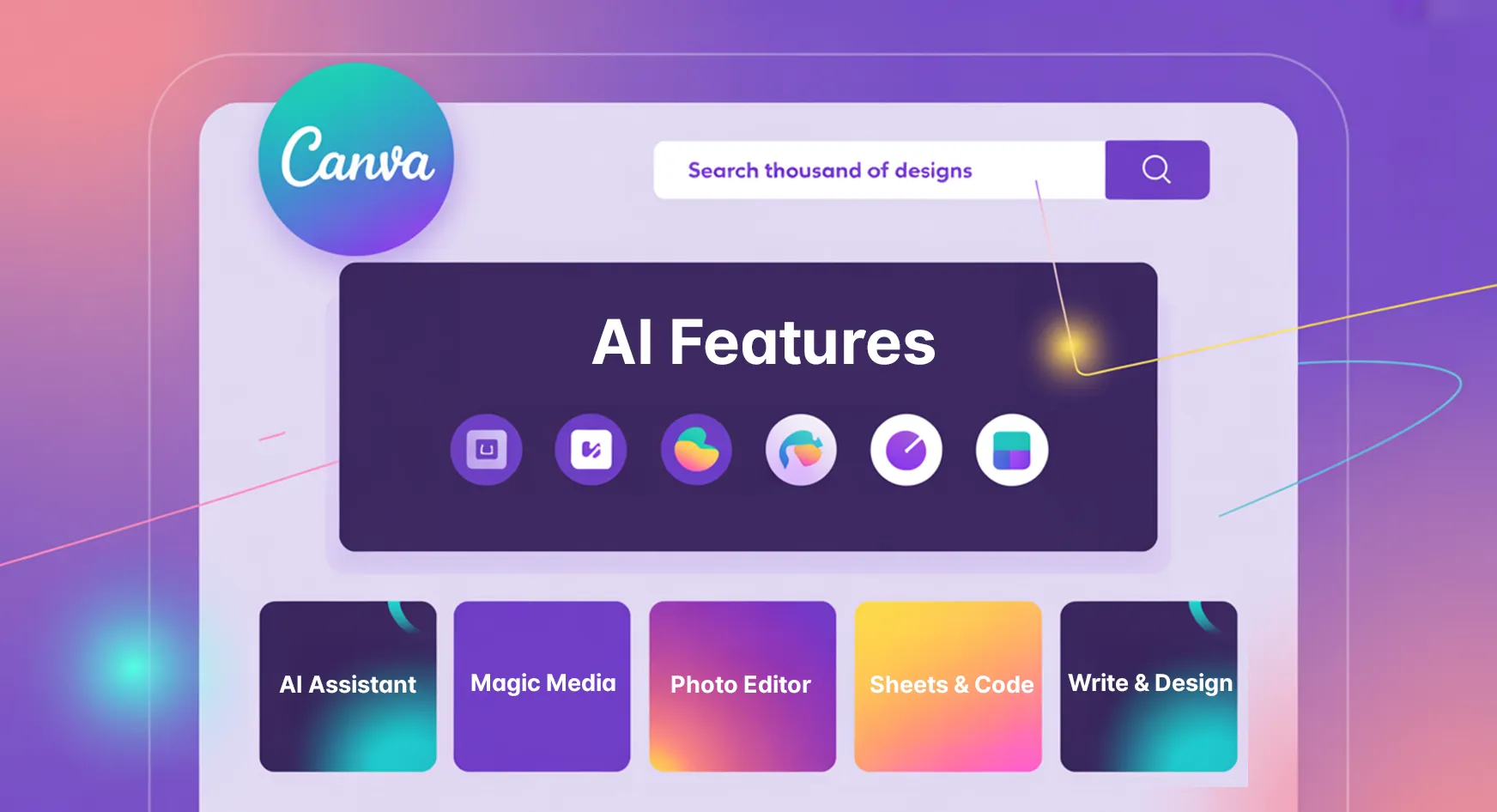
Canva has dropped a massive collection of AI tools that are changing how you design. From AI-powered designs and 3D graphics to style matching and a smart design assistant, these updates have really sped up the workflow and leveled up creativity.
In this blog, let’s break down every AI feature you need to know from Canva.
For those who don’t know what Canva is, it’s the most popular and world’s favorite platform for creators and designers. Whether you’re making social media content, presentations, or videos, Canva has always been the go-to tool for anyone who wants to create professional designs without needing expert-level skills. And now, with these new AI features, Canva is taking creativity to a whole new level.
Voice-Powered Prompts
One of my favorite additions is the ability to create designs using voice commands. Simply speak your prompt like “a post to promote my kid’s soccer game” and Canva instantly generates multiple template options that match your request.
Once you’ve entered your prompt, you can customize the color scheme and language. Canva then offers a variety of templates matching your topic and color choices. You can click any template to instantly load it onto your page. This even works for multi-page designs such as LinkedIn carousels, allowing you to preview all pages before applying them to your project.
Magic Background Generator
Creating custom backgrounds just got incredibly easy. Click on your current background and select Magic BG (Magic Background). Canva automatically analyzes your design and generates new, relevant background options based on what’s already on your page.
One small improvement I’d love to see? Instead of replacing the current background, Canva could give the option to create a new page with the generated background. Still, the “Background Ideas” feature is fantastic. It helps you create visuals that feel natural and consistent with your overall design.
Redesigned Elements Tab
The Elements tab has gotten a major AI upgrade with a more visual, modern interface. The search box now includes voice commands and feels much more intuitive to use.
Generate Images
Type or speak what you need, like “a dog and a cat landing on the moon”, and click Generate Images. Canva will create four variations instantly. It’s basically Magic Media, now built directly into the Elements tab. Not happy with the results? Just click regenerate, and Canva will try again in seconds.
Generate Videos
I tested this with the prompt “a hamster running in its wheel”, and within 30 to 40 seconds, I had a usable video. The technology has improved massively from a few months ago. It’s definitely worth trying for short video content.
Generate Code
This one blew my mind. I typed “a pink functioning calculator”, and Canva wrote 150 lines of working code in seconds. The result? A fully functional calculator that anyone with access to your design link can use. It’s like having a developer built into Canva.
3D Element Generation
You can now create custom 3D objects with a simple text prompt and rotate them to view from any angle. For example, I generated “a pair of sunglasses, aqua color frame, and light brown lenses” in about 20 to 30 seconds.
The Rotate 3D button lets you position your object using preset angles or manual controls. This is perfect for product promotion and catalogs, e-commerce listings, website graphics, and educational content.
Currently, 3D rotation is supported in presentations, videos, whiteboards, social media, and websites. Once published, the rotation is locked for viewers.
Custom Shape Generator
Head to Elements > Shapes > See All, and you’ll find a new Generate Shapes button. This allows you to create any custom shape you can imagine, truly unique to your project.
Some examples include organic plants, highlighter strokes, pill buttons (great for websites and apps), speech bubbles, and hand-drawn wiggly lines.
You can change their color, add outlines, and use gradients. Every shape you generate is yours alone, giving your designs a fresh, original identity that no one else will have.
Style Match (Art Style Copy)
This feature helps you harmonize your entire design. Beyond copying colors or outlines, the Art Style option analyzes your reference graphic and applies that same visual aesthetic to your other elements.
If your main image has a 3D illustration style, Canva’s AI will match your other graphics to that look, creating a cohesive and consistent brand feel in just a few clicks.
AI Design Assistant
This might be my favorite update yet. Canva now has a ChatGPT-style AI assistant built right into the editor, and it actually understands design.
You can ask it things like “What do you think of this photo? Should I change it?” or “What do you think of the text hierarchy on this design?”
The assistant responds with real design insights about readability, balance, and visual pacing. It can also generate captions, suggest copy improvements, recommend layout changes, and propose creative names or taglines.
For example, I asked it for Instagram captions about a puppy named Pumpkin, and it gave me adorable, on-brand lines like “Drop a paw print if you love this fluffy face 🐾”
Availability: It’s rolling out to all Canva users. The only current limitation is that it can’t access your brand kit yet, but that’s likely coming soon.
Design on Brand
Speaking of brand kits, Canva’s Design on Brand feature makes staying consistent easier than ever. Just select your brand kit, and Canva automatically applies your brand colors, fonts, and style guidelines.
You can shuffle colors, request different image styles, or generate multiple versions like Instagram stories or thumbnails.
I tested this with YouTube thumbnails. While the layouts weren’t super creative, the feature perfectly matched my brand fonts, colors, and photos, saving me hours of manual setup.
Verdict: Great for speed, consistency, and brand alignment.
AI-Guided Presentations
Canva’s AI can now guide you through creating entire presentations. You can choose Design for me > Presentation, select audience type (Casual, Professional, or Educational), set presentation length, review the outline, and generate your first draft instantly.
I tested this with a nonprofit project presentation, and Canva delivered slides that included pain points, training goals, timelines, and resource breakdowns, all logically structured and ready to edit.
When I asked it to use real photos instead of illustrations (like artisan and fair-trade imagery), it delivered high-quality, relevant visuals that fit perfectly.
This tool saves hours of work and lets creators focus on what really matters: ideas and storytelling.
Ready to Try Professional Video Editing?
Want to take your visuals even further? We also offer professional video editing services to help creators, TikTok editors, and brands produce stunning videos that stand out.
Check out our Instagram: @aurizon.editors
Final Thoughts
These AI-powered features represent a major leap forward for Canva. Whether you’re a content creator, video editor, educator, or small business owner, these tools make it easier than ever to create fast, beautiful, and professional visuals.
The future of design is here, and it’s more accessible, creative, and exciting than ever.
Share your thoughts?